1. Sign up & create your workspace
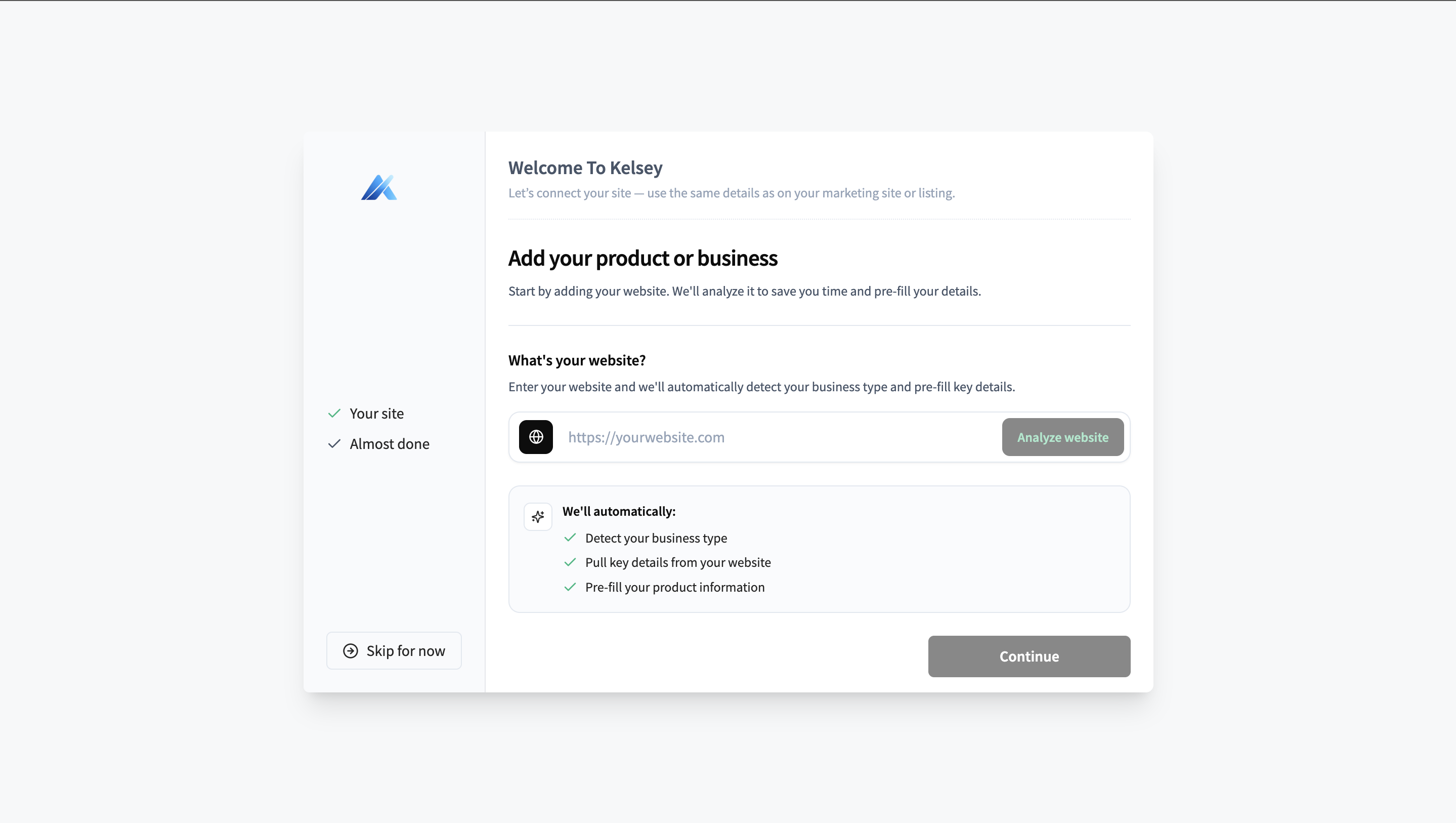
Head to app.trykelsey.com/signup and create an account with your work email. After verifying your address, you'll land on the onboarding flow which walks you through workspace setup.
2. Add your first site
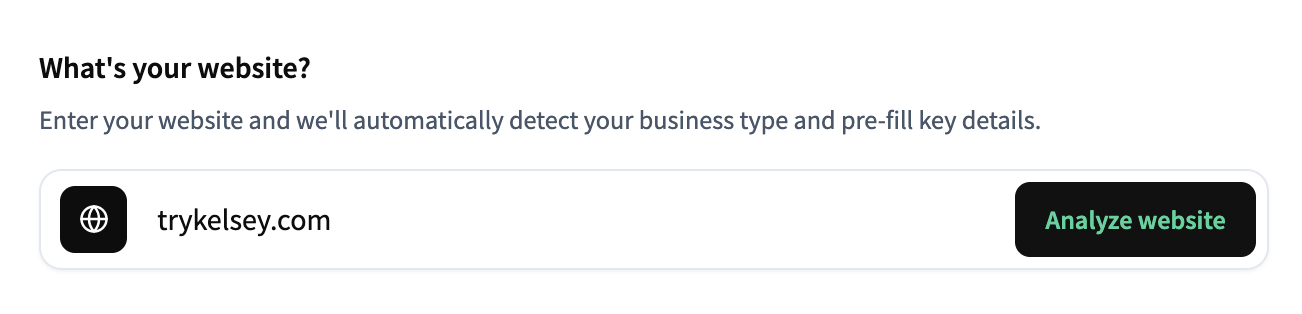
A site in Kelsey represents the brand or business you want to track. Most teams use one site per company they're monitoring. Agencies typically have one workspace with multiple sites — one per client.
Enter your domain (e.g. acme.com) and Kelsey will pull a name and basic context from the site automatically.
3. Choose prompts
Prompts are the buyer-style questions Kelsey will ask AI assistants on your behalf. Good prompts mirror how a real customer would ask, not how you'd write a search keyword.
Strong examples:
- "What's the best [category] for [use case]?"
- "I'm looking for an alternative to [incumbent] — what should I try?"
- "Recommend a tool that [specific job-to-be-done]."
Kelsey reads your site and suggests a starter set of prompts; pick the ones that match your buyer's actual language. You can add more anytime.
What about competitors?
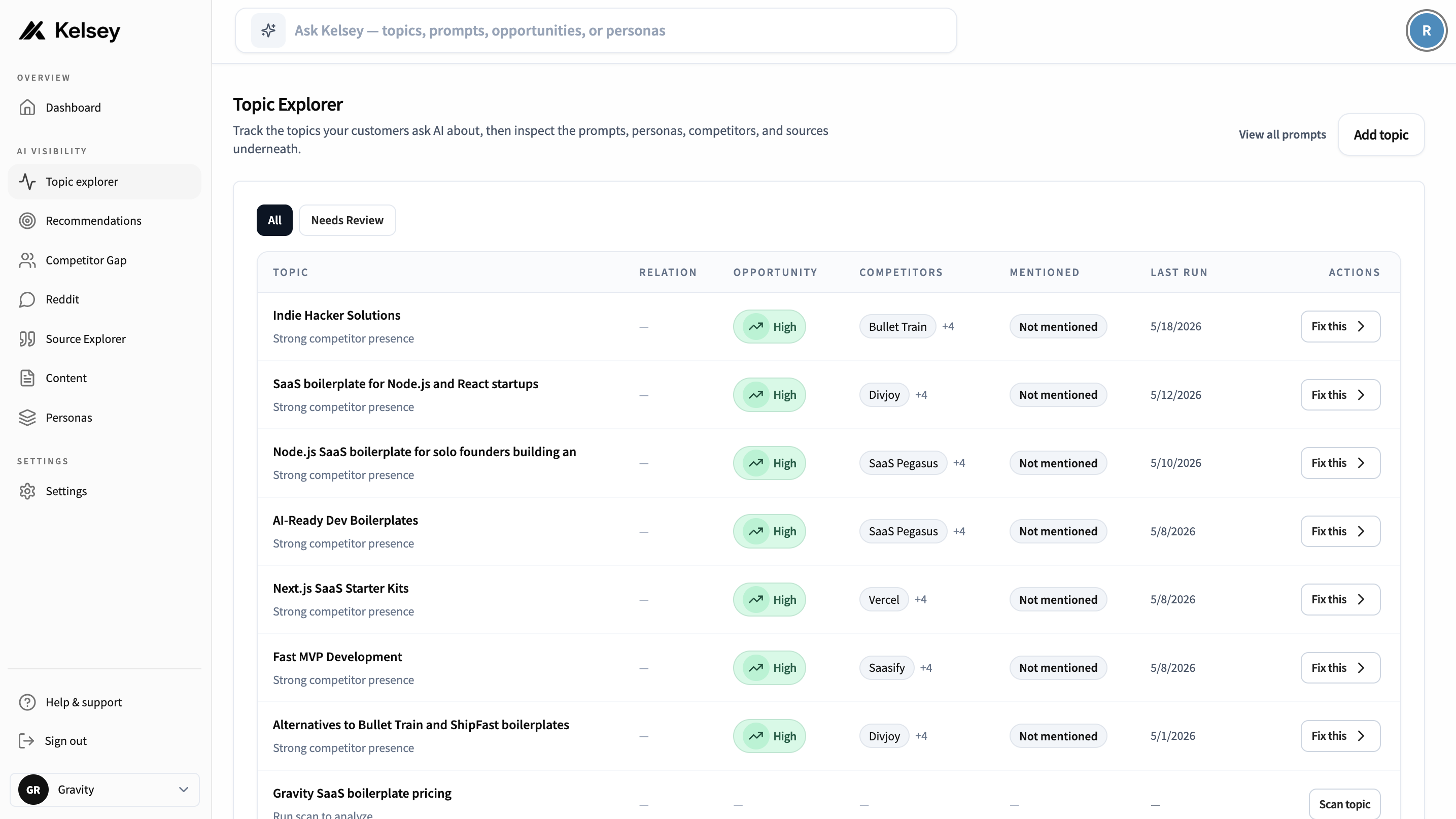
You don't pick a competitor list. Kelsey extracts competitors from the AI answers themselves — whoever ChatGPT or Perplexity mentions in your scanned prompts becomes a tracked competitor automatically. Strong, buyer-style prompts produce a useful competitor set. Read more.
4. Run your first scan
A scan runs your selected prompts across the AI assistants Kelsey supports and records who got mentioned, who got recommended, what sources got cited, and how your brand was characterised.
The first scan takes a couple of minutes — you'll see results stream in as each prompt completes. Once it finishes, you'll land on your workspace dashboard.

Free first page
Hobby includes three ChatGPT buyer questions, one targeted page refresh, and one re-run of those questions two weeks after you publish. Weekly scans and extra refreshes start on a paid plan.
What to do next
Once your first scan finishes, open these in order:
- The recommended page refresh on your scan report — the first completed improvement.
- Queries — the actual ChatGPT answers, prompt by prompt.
- Recommendations — after you upgrade, the next pages to refresh.