Dashboard at a glance
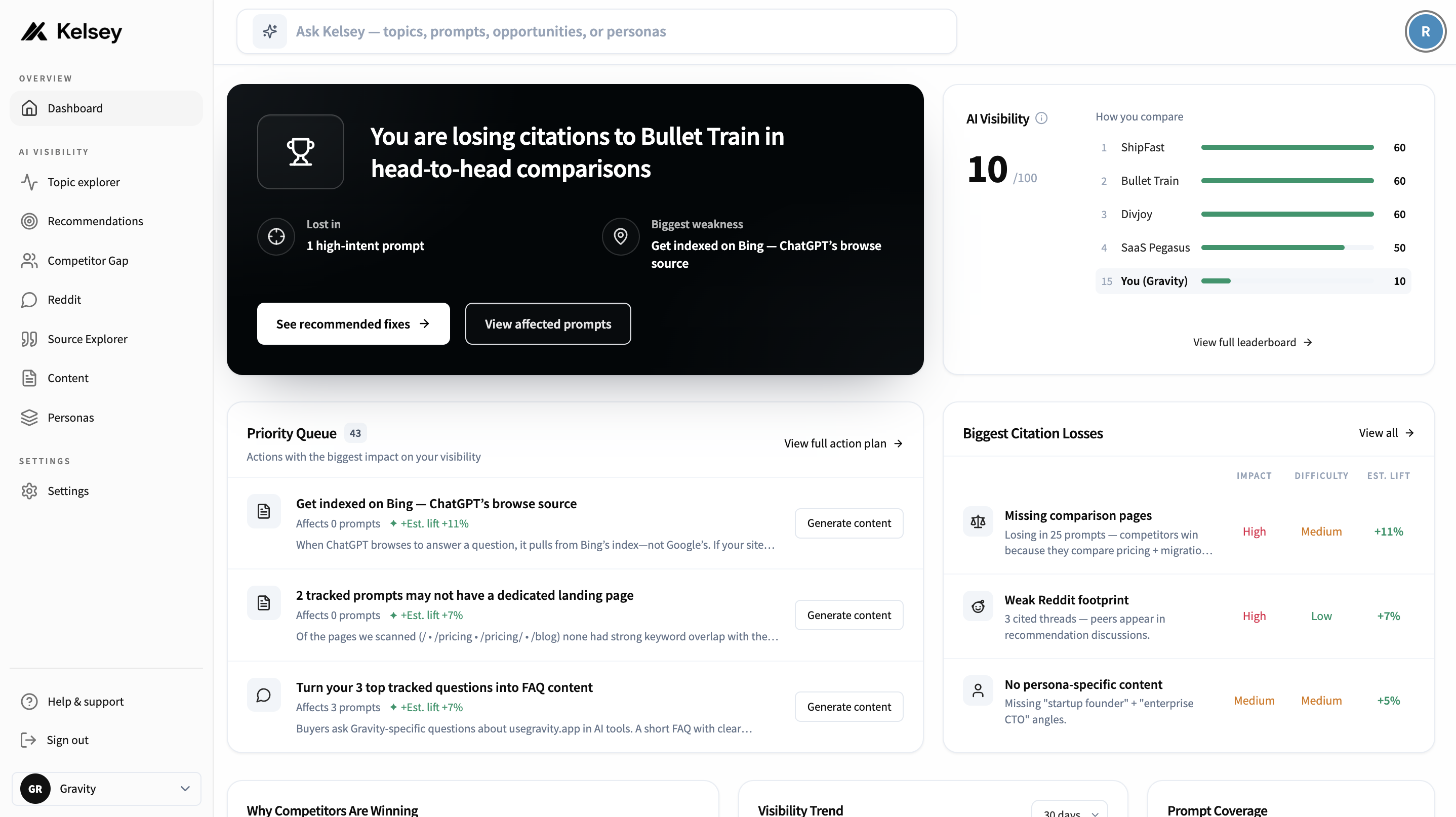
The workspace dashboard combines four things on one screen: your current Mention Score, what's changed since the last scan, the queries that matter most, and a short list of recommended next steps.
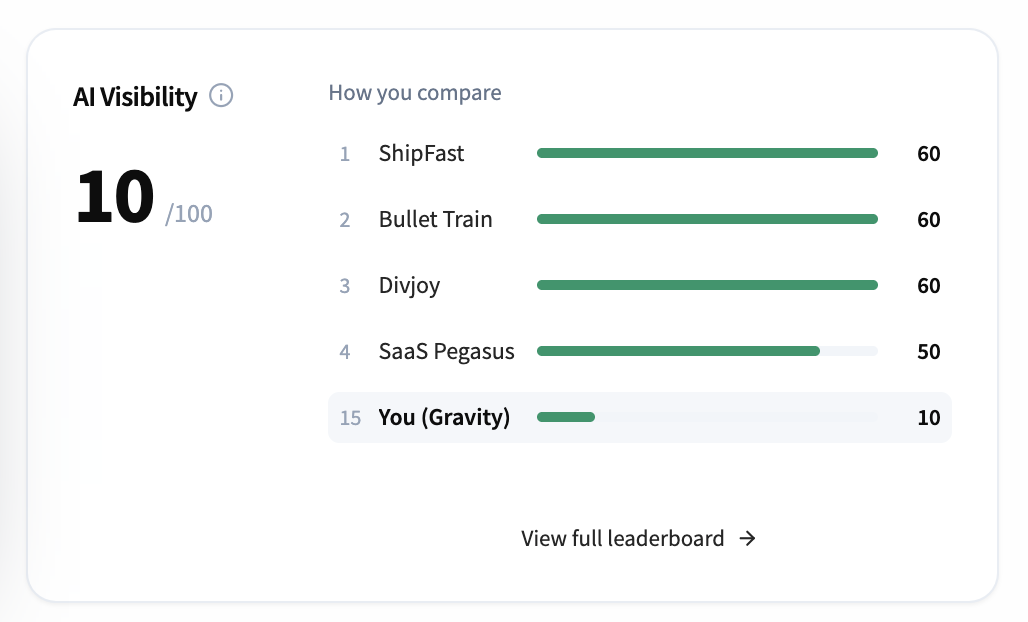
Mention Score
Mention Score summarises how often AI assistants mention or recommend your brand across the prompts you track. Higher is better. The score blends three signals:
- Mention rate — how often you appear at all.
- Recommendation rate — how often you appear in a positive recommendation.
- Position — where you fall when a list of options is given.
Priority Queue
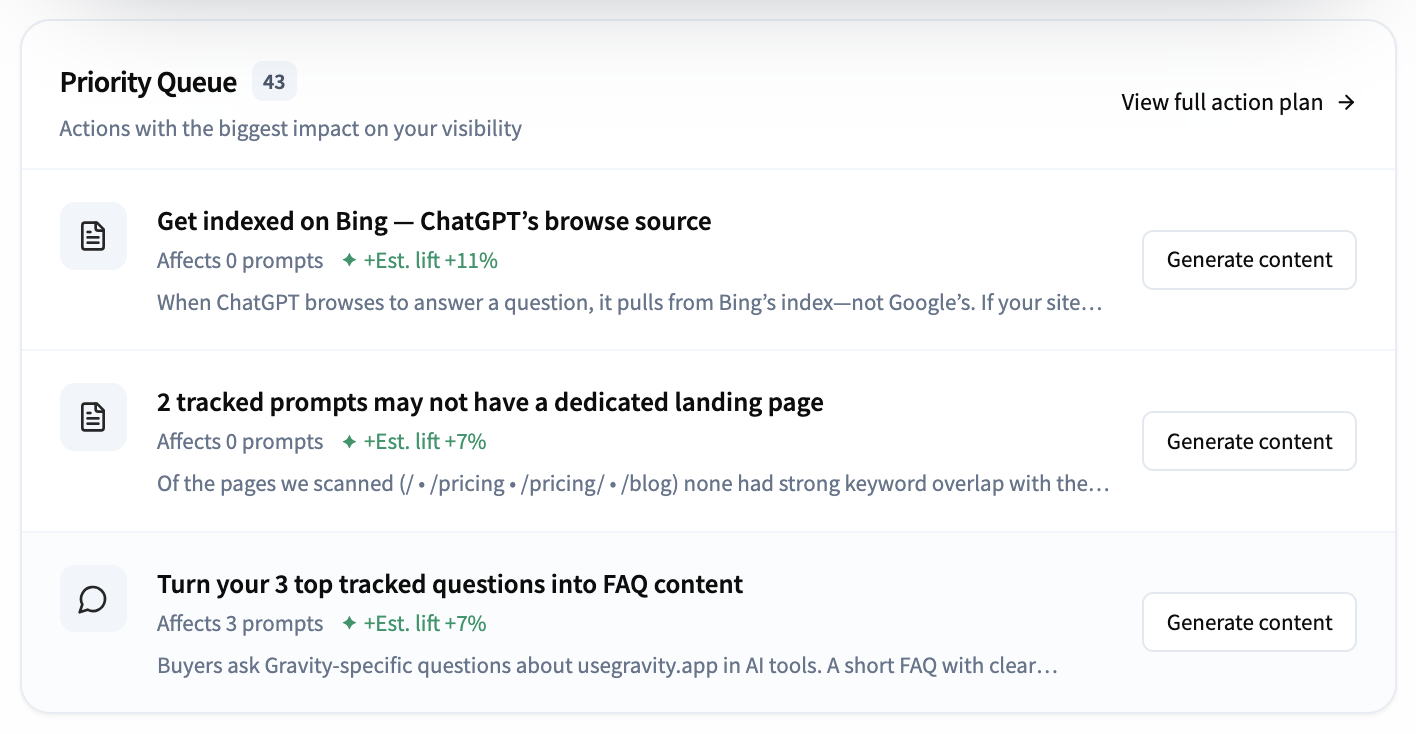
The Priority Queue sits at the top-left of the dashboard. It's a ranked list of the highest-leverage actions you can take right now to improve how often AI assistants cite you. Each card shows a single, do-able action — not a vague "improve your SEO" suggestion.
Each card includes:
- Action title — e.g. "Get indexed on Bing — ChatGPT's browse source".
- Affects N prompts — how many of your tracked prompts the action would move.
- Est. lift — the % visibility gain we expect if you complete it.
- Why it matters — one or two lines of context.
- Generate content button — hands the action to Kelsey to draft for you.
Click "View full action plan →" in the header to see every recommendation, not just the top three. The number next to "Priority Queue" (43 in the example) is the total open queue.
Biggest Citation Losses
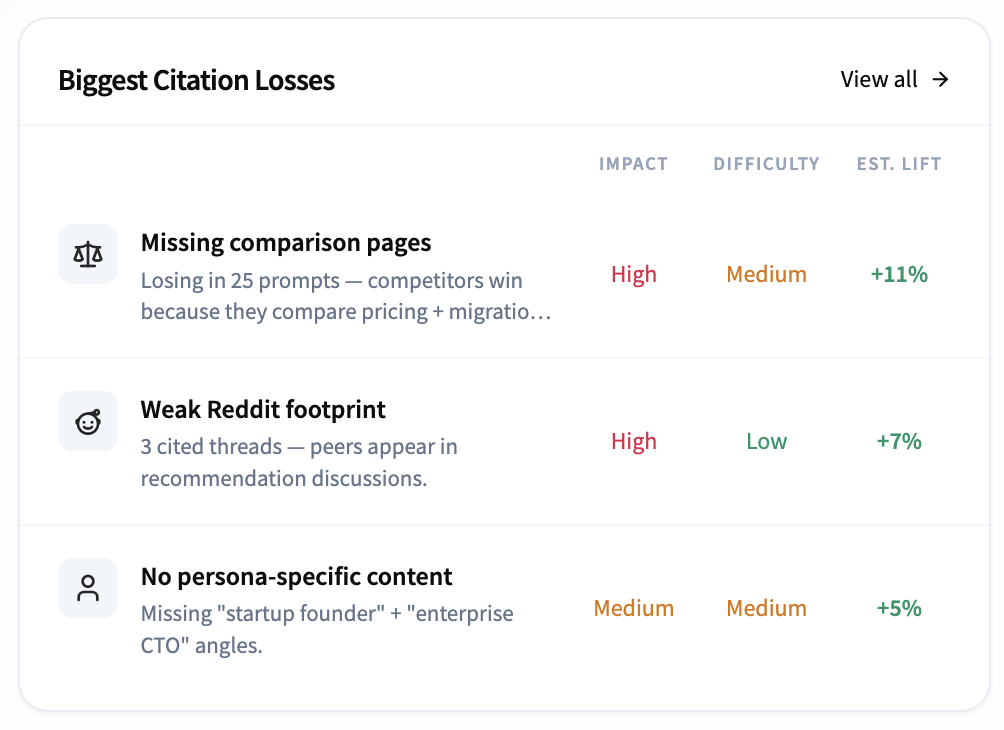
Citation losses are prompts where competitors are being cited and you aren't. The card ranks them by impact so you can see where you're leaking visibility the fastest.
Three columns help you triage:
- Impact — how visible the gap is across your tracked prompts (High / Medium / Low).
- Difficulty — roughly how much content or engineering work it takes to fix.
- Est. lift — the % visibility you'd recover if you closed the gap.
Filter for Difficulty = Low when you want quick wins; sort by Impact = High when you want a bigger swing. "View all →" opens the full list.
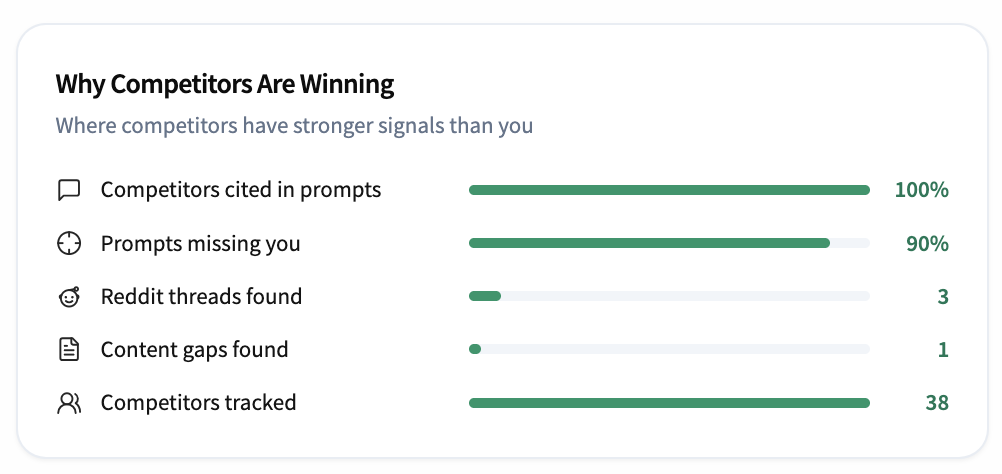
Why Competitors Are Winning
This card surfaces the structural reasons competitors outperform you in AI answers. Each row is a signal Kelsey measures across all your prompts:
- Competitors cited in prompts — % of tracked prompts where any competitor is cited.
- Prompts missing you — % of tracked prompts where you don't appear at all.
- Reddit threads found — Reddit threads where competitors are recommended (and you aren't).
- Content gaps found — pages competitors have indexed that you don't.
- Competitors tracked — total competitors Kelsey has auto-discovered from AI answers.
The longer a bar, the bigger the gap. Pick one row per week and treat the matching detail page as your to-do list.
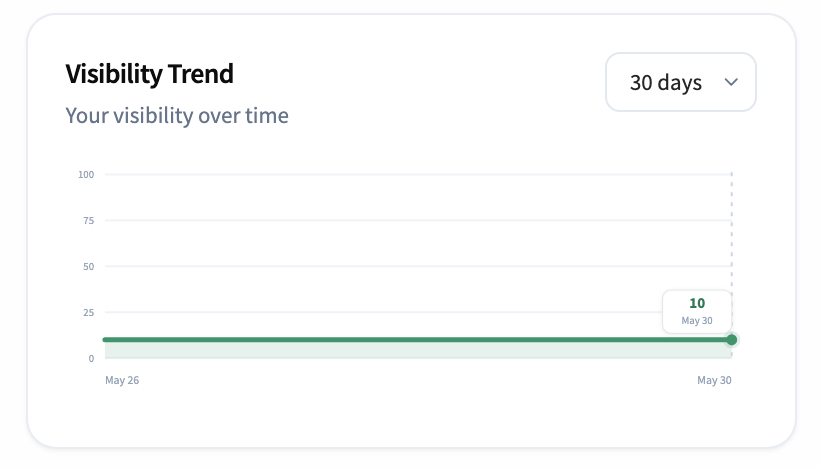
Visibility Trend
A line chart of your visibility over time. Use the dropdown (default 30 days) to switch between 7, 30, or 90 days. Hover any point to see the exact value and date.
Small movement (a few points) is normal week to week — assistant outputs are non-deterministic. Look for sustained changes (3+ scans trending the same direction) or step changes that line up with content or product updates. If a single scan looks like a big shift, click into the underlying queries before reacting.
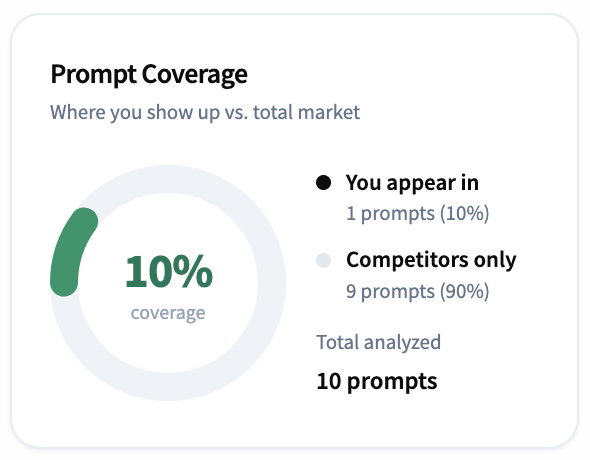
Prompt Coverage
The donut shows what share of your tracked prompts you appear in versus the share where only competitors appear. In the example, coverage is 10% — you appear in 1 of 10 tracked prompts; competitors appear in the other 9.
- You appear in — count and % of prompts where you're cited.
- Competitors only — count and % of prompts where only competitors are cited.
- Total analyzed — total prompts behind the donut.
If you're new, this is the single most important number on the dashboard — it tells you how often you're even part of the conversation.
Headline stats
The strip across the bottom of the dashboard summarises the week at a glance. Each tile shows the current value plus the week-over-week delta underneath.
- Queries tracked — total prompts in your workspace.
- Cited queries — prompts where you were cited at least once.
- Avg position — your average rank when you do appear (lower is better).
- Mentions — total mentions of your brand across all scans this week.
- Est. lift — the cumulative potential lift if you closed every Priority Queue action.
Tip
If a stat drops sharply week over week, check the Queries page first — a model update or refusal can show up as a temporary dip before stabilising.
