Topics
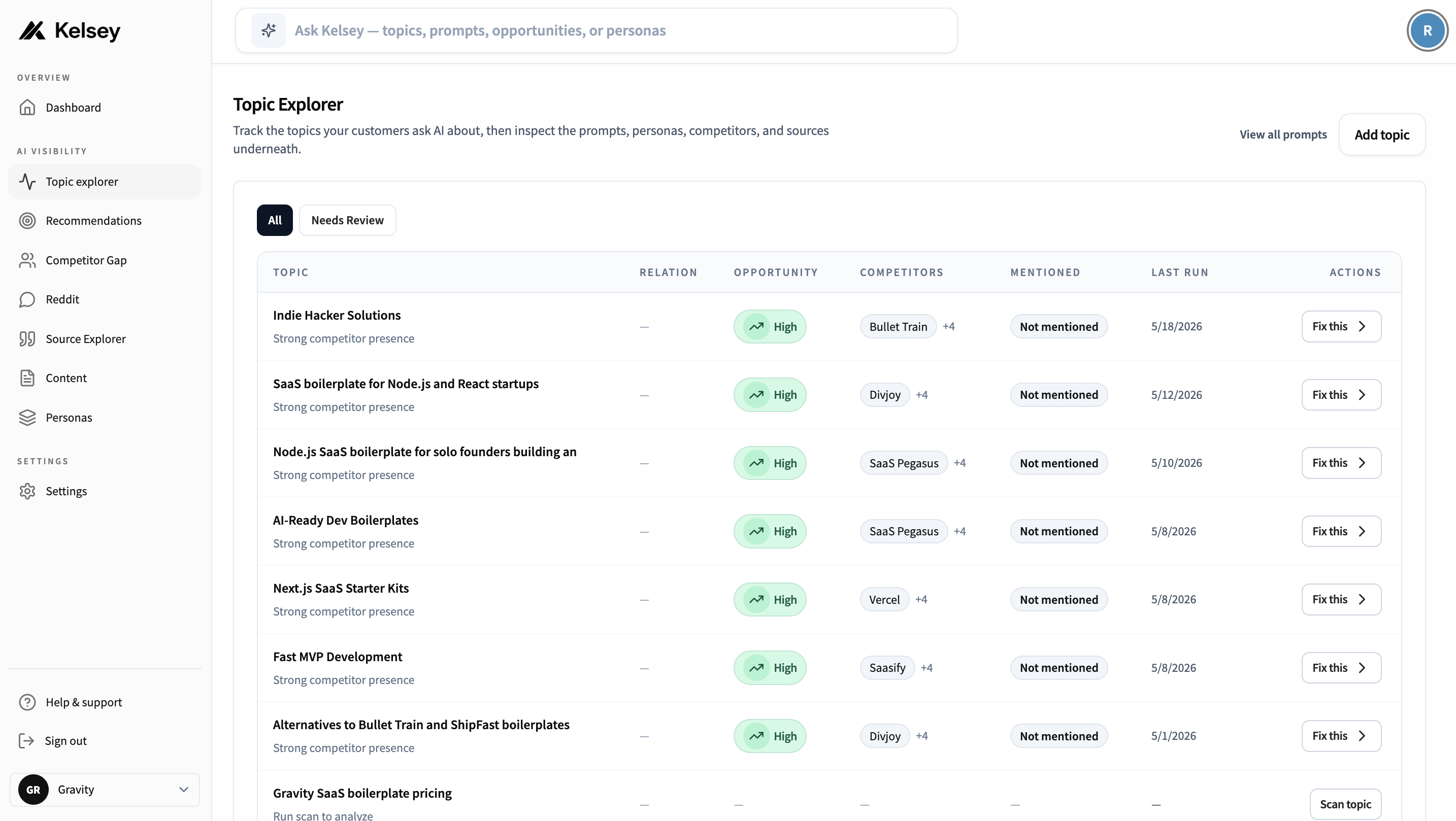
A topic is a market or buying conversation you want to win inside AI assistants. It is broader than a single prompt and narrower than your whole brand. Think of it as the category a buyer is shopping in.
Examples of good topics:
- "SaaS boilerplates for startups"
- "AI visibility tracking for brands"
- "Festoons and malar bags treatment"
- "Upper blepharoplasty in Tampa"
You add a topic from the Queries page (look for Add topic in the sidebar) or by asking Kelsey in plain English, for example "track a topic about upper blepharoplasty in Tampa". Kelsey suggests starter topics during onboarding based on your site, but you can add as many as your plan allows.
Every topic owns a set of tracked queries that all relate to that conversation. Topics are also how Kelsey scopes its other tools: recommendations, content drafts, and the Topic Explorer all key off the topic a query belongs to.
From a topic to queries (fan out)
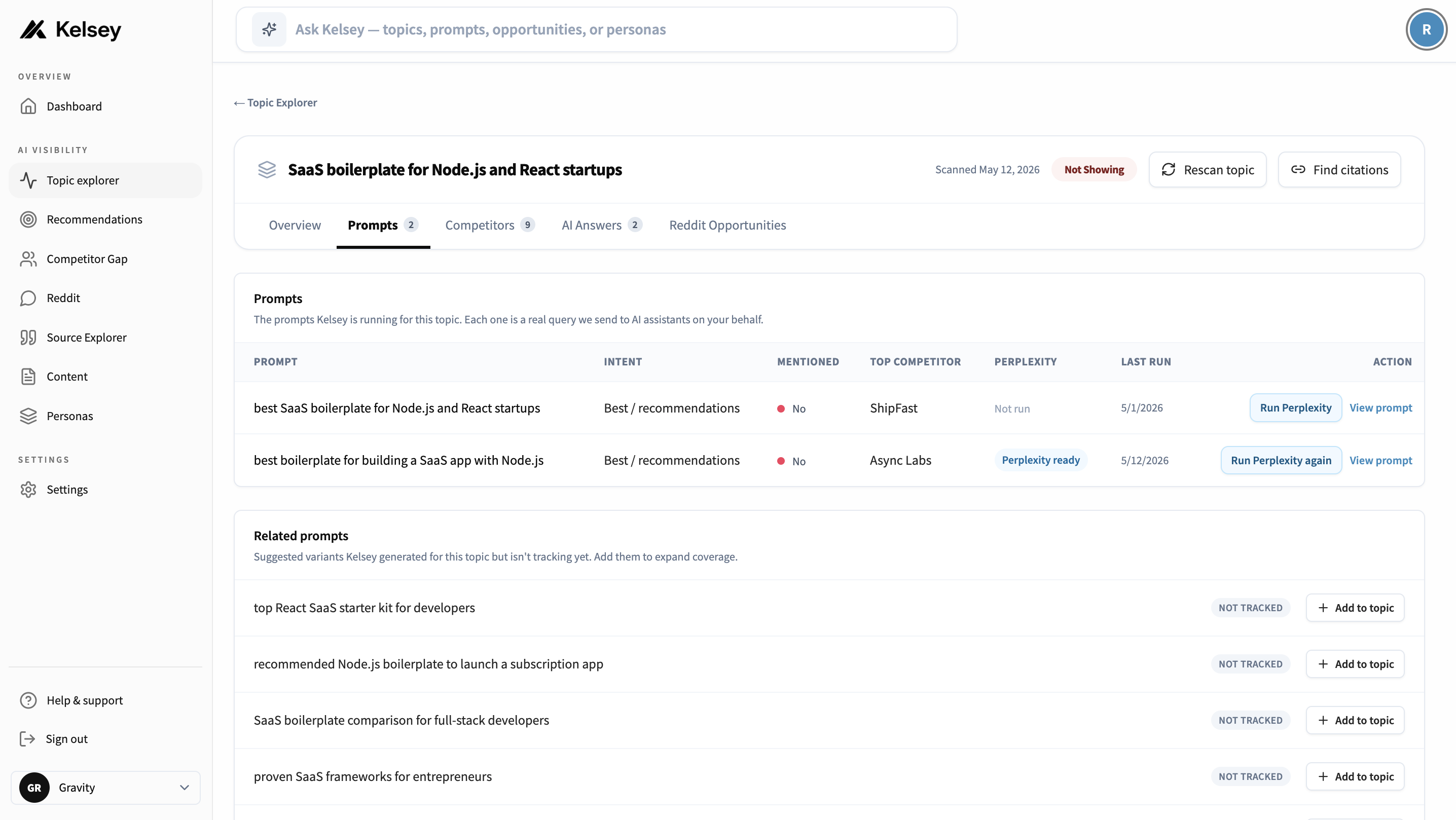
When you add a topic, Kelsey fans it out into a set of buyer-style queries. The default fan-out is around 15 prompts (your plan can extend this up to roughly 40). The goal is to cover the same topic from several different buying angles in one shot.
A typical fan-out covers different intents inside the same topic:
- Recommendation, e.g. "best AI visibility tool for B2B SaaS"
- Comparison, e.g. "Kelsey vs Profound"
- Alternative-seeking, e.g. "alternatives to ChatGPT visibility tracking"
- Pricing, e.g. "how much does AI brand monitoring cost"
- How-to and troubleshooting, e.g. "how do I get my SaaS cited by ChatGPT"
You review the fan-out before anything starts running. Keep the prompts that read like real buyers, drop the ones that don't fit. Once you accept them, every prompt becomes a tracked query and rolls into your normal scan schedule.
Why topics, not prompts
A single prompt only tells you what one buyer might ask. A topic captures the whole conversation: comparison shoppers, alternative seekers, pricing hunters, troubleshooters. Tracking the topic gives you a defensible read on how AI assistants describe your category, not just one keyword.
The queries table
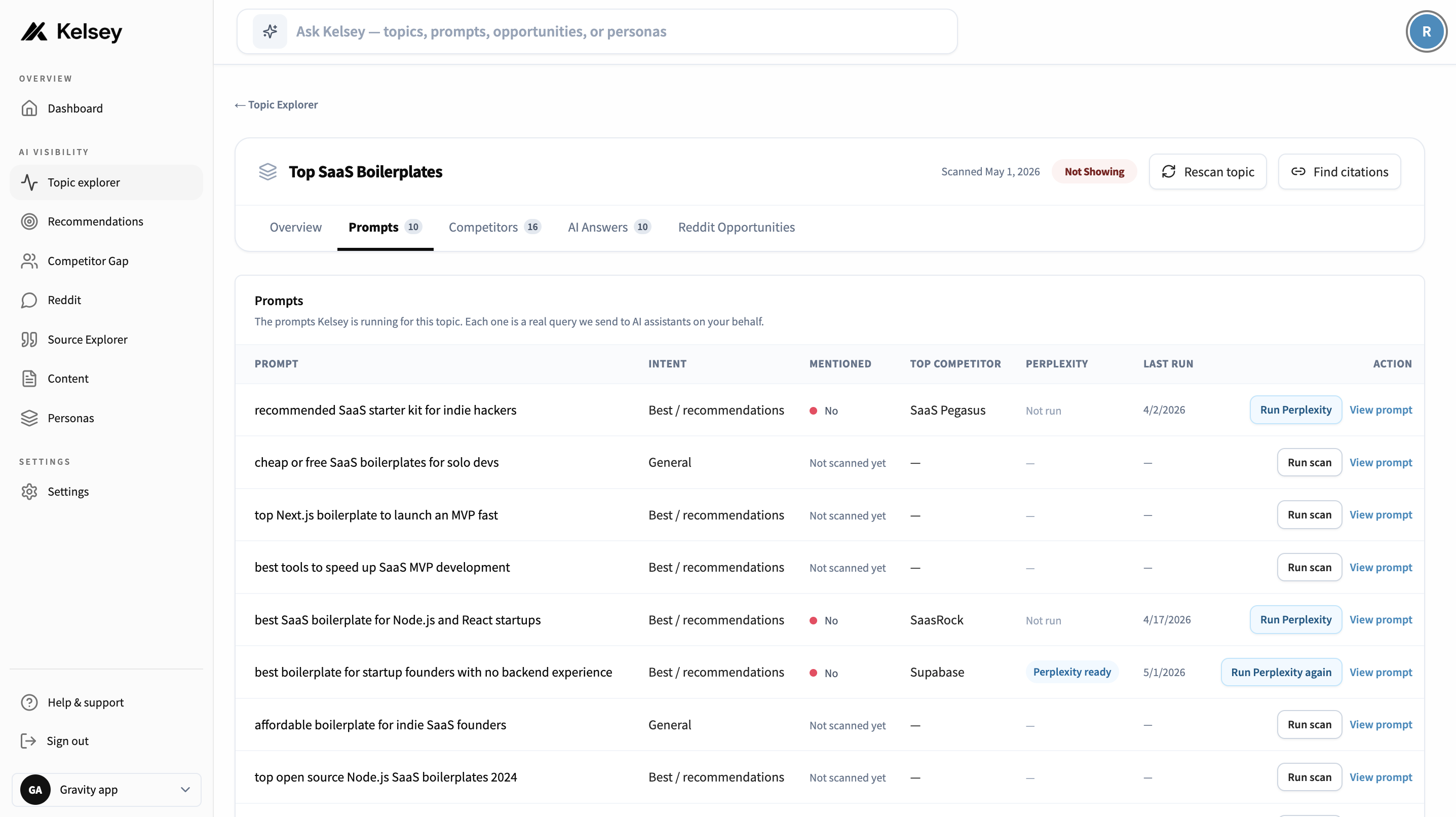
Every tracked query (whether it came from a topic fan-out, a direct add, or a per-query fan-out) shows up in the queries table. The latest result is inline: who got mentioned, who got recommended, your position, and when it last ran.
You can group the table by topic to read it as "how am I doing inside this conversation", or sort flat by recency, mention rate, or week-over-week movement to find what is worth a closer look.
Adding a query directly
Most of the time you should add a topic and let it fan out. But you can also add an individual prompt: click Add prompt, pick the topic it belongs to, and type the question exactly as a customer would ask. Kelsey queues it, runs it across the assistants you have enabled, and streams results back within a minute or two.
You can also re-run any existing query on demand from its row, which is useful when you want to confirm a result hasn't changed after a content update.

Trial & plan limits
Free trials cap how many prompts you can run on demand and how many scheduled runs we will execute per week. If you hit the cap, the button surfaces an upgrade prompt and your existing data stays intact.
Query detail page
Clicking a query opens the detail page: the full assistant response for every model, with mentions and citations highlighted. This is where you find out why you didn't appear, or which competitor took your slot.
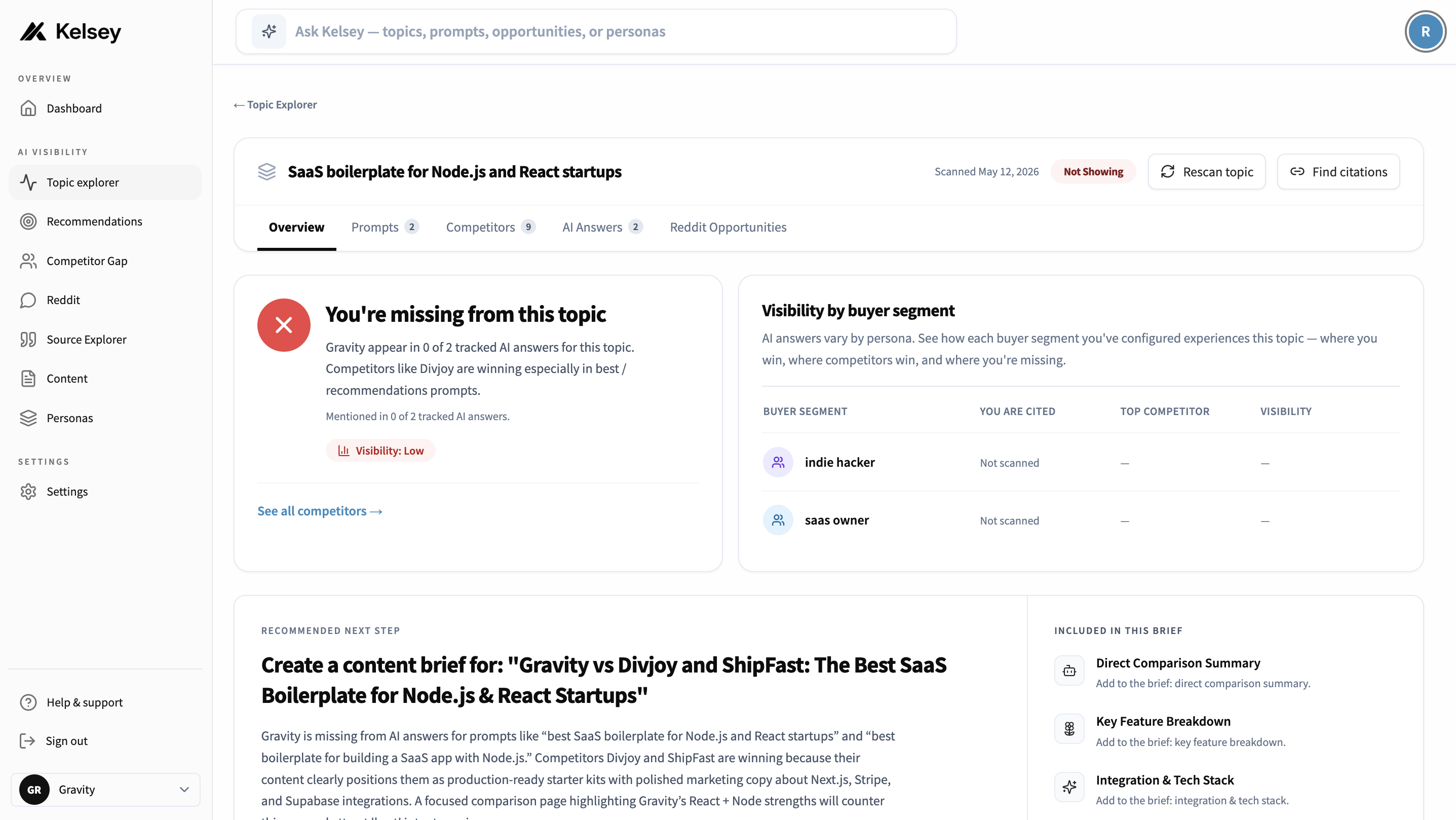
Each response shows:
- Mentions: every brand the assistant named, with your brand highlighted.
- Position: where each brand fell in the ordered list.
- Sentiment and framing: how the assistant characterised each option.
- Citations: the sources the assistant pulled from.
Per-query fan-out
Topics fan out into queries. Each tracked query then has its own fan-out too. After every scan, Kelsey reads the assistant answers and generates a list of related questions buyers might also ask: sibling prompts, follow-ups, and comparison angles based on what the model just said.
On the query detail page, look for the Fan-out tab. From there you can:
- Track a fan-out suggestion to add it as a tracked query under the same topic.
- Track and scan to add it and run it immediately on the assistants you have enabled.
- Skip any suggestion that doesn't fit, and Kelsey will stop suggesting that one.

This is how a topic grows over time. You start with one topic, Kelsey fans it out into queries, and each tracked query keeps surfacing more related queries based on what AI assistants are actually saying about your space. Coverage compounds without you having to keep brainstorming prompts.
Writing good prompts
Whether you are naming a topic or adding an individual prompt, the rule is the same: write the way a real buyer types at 11pm. Avoid keyword-stuffed phrasing.
Good
- "What's the best CRM for a small services agency?"
- "I tried HubSpot and it was overkill, what should I try instead?"
- "Recommend a tool that lets non-engineers ship landing pages fast."
Avoid
- "best crm small business 2025"
- "top 10 hubspot alternatives"
- "landing page builder no-code"